
- General information
- How to appoint functional managers
- How functional managers view the My Team section
- How can a manager change a team in filter settings?
- Cases of appointment of functional managers
- Questions and Answers
General information
Functional managers are managers who are responsible for a specific area, function (acting as a coach)or department within a company (e.g., accounting, HR, IT, marketing), but may not be the direct supervisor of all employees performing this work.
Thus, employees may report to designated individuals functionally (for example, in terms of working on tasks), but administratively remain subordinate to another manager (for example, the head of a department or branch).
You can assign managers to user groups on the Assignment Groups tab of the Users section .
The manager assigned to the group is the functional manager .
The manager specified via email (in the employee's card) is the direct manager .
The My Team section will be available to users who are the manager of at least one group, regardless of whether the "User is a manager " checkbox is checked in their profile. If a functional manager has direct reports, they will be able to see information for each reporting type separately in the "My Team" section.
How to appoint functional managers
There are several ways:
No. 1 On the Assignment Groups tab of the Users section manually
Using table display of groups:
- Select the "Users" section;
- Go to the "Destination Groups" tab;
- Hover over the group you select (this can be either the root group or a child group);
- Click on the pencil - a card for editing will be displayed;
- Go to the "Manual" tab;
- Select managers using checkboxes (you can search for managers by full name, email, phone number, or login);
- Click the "Select" button and then "Save".
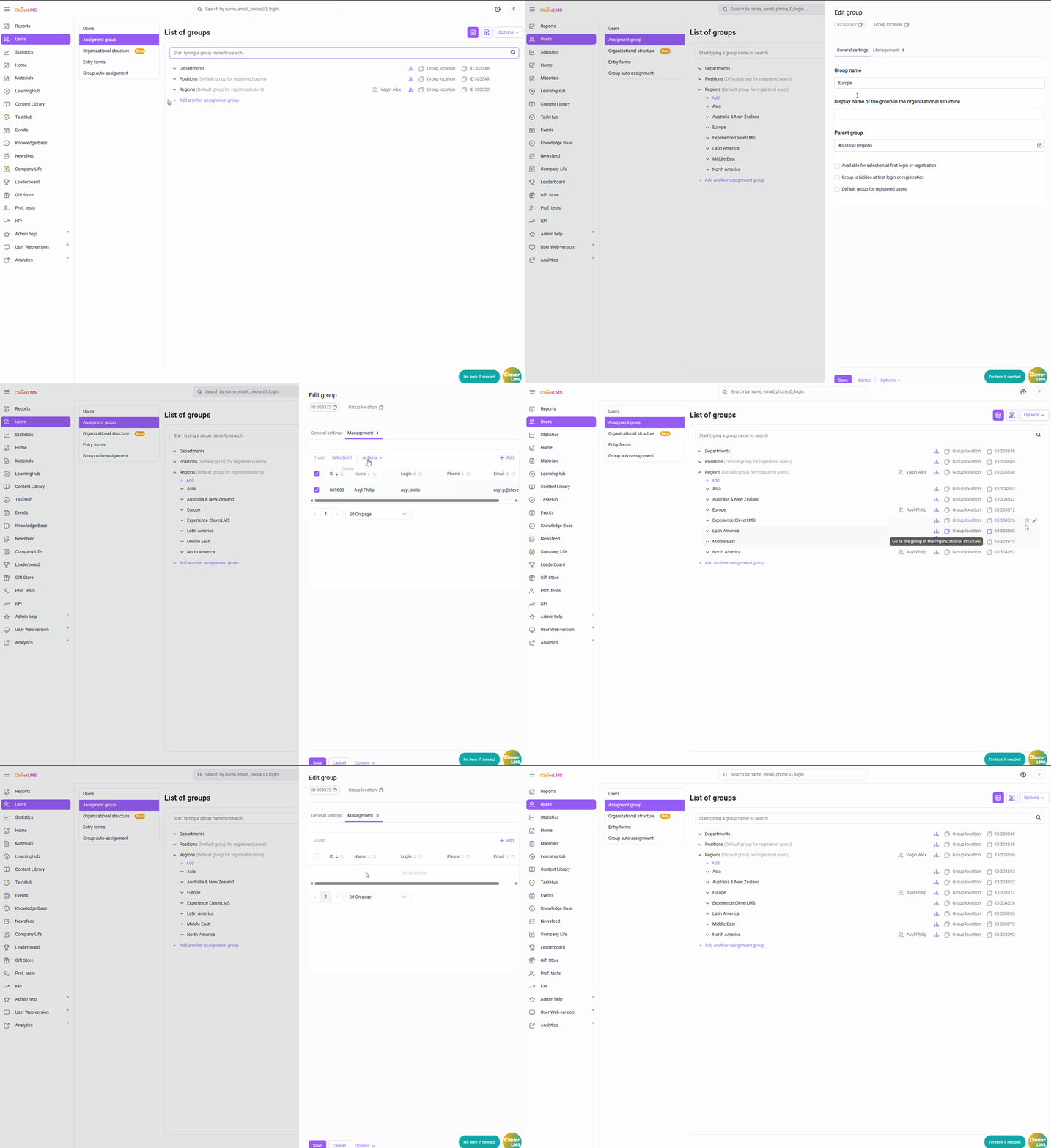
Using the Org Structure canvas:
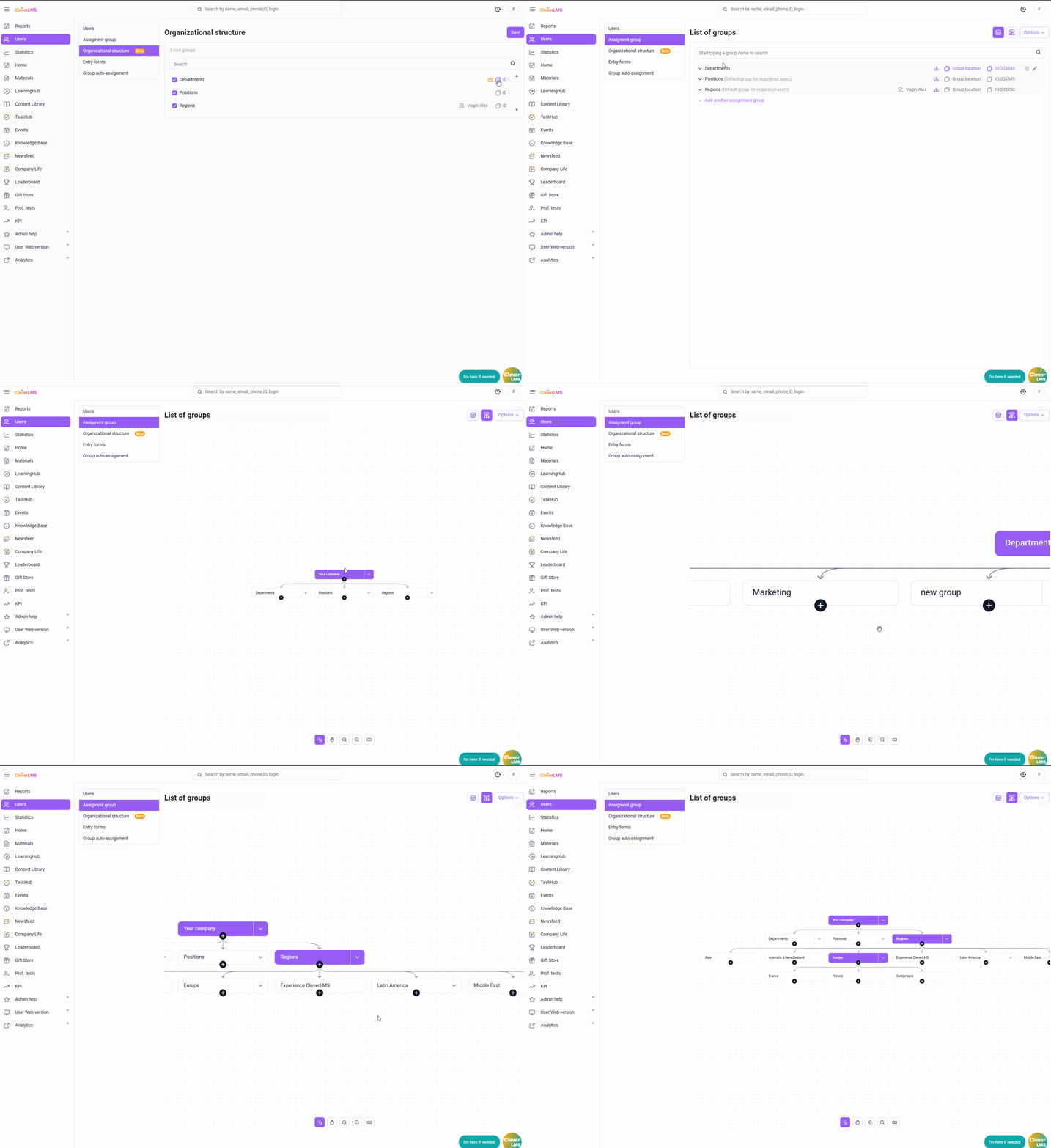
- Select the Users section ;
- Go to the Destination Groups tab ;
- Click on the Org Chart canvas icon in the upper right corner of the screen;
- Click on the block with the name of the group for which you want to assign a functional manager;
- Go to the Manual tab ;
- Select managers using checkboxes (you can search for managers by full name, email, phone number, or login);
- Click the Select button and then Save .
The number of managers is now displayed next to the root group (if only one manager is assigned to the group, their full name is displayed).
Clicking the text with the number of managers opens the group settings on the Managers tab .
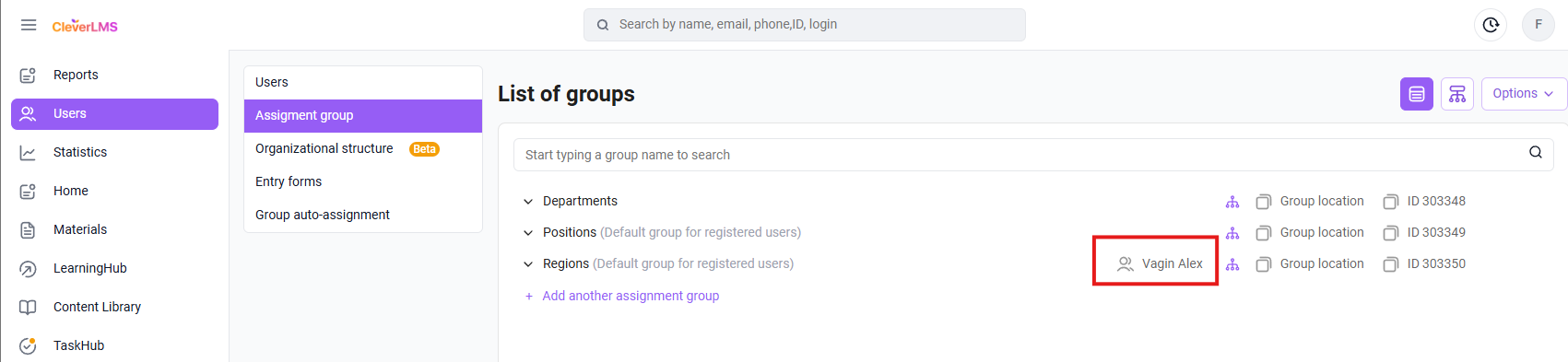
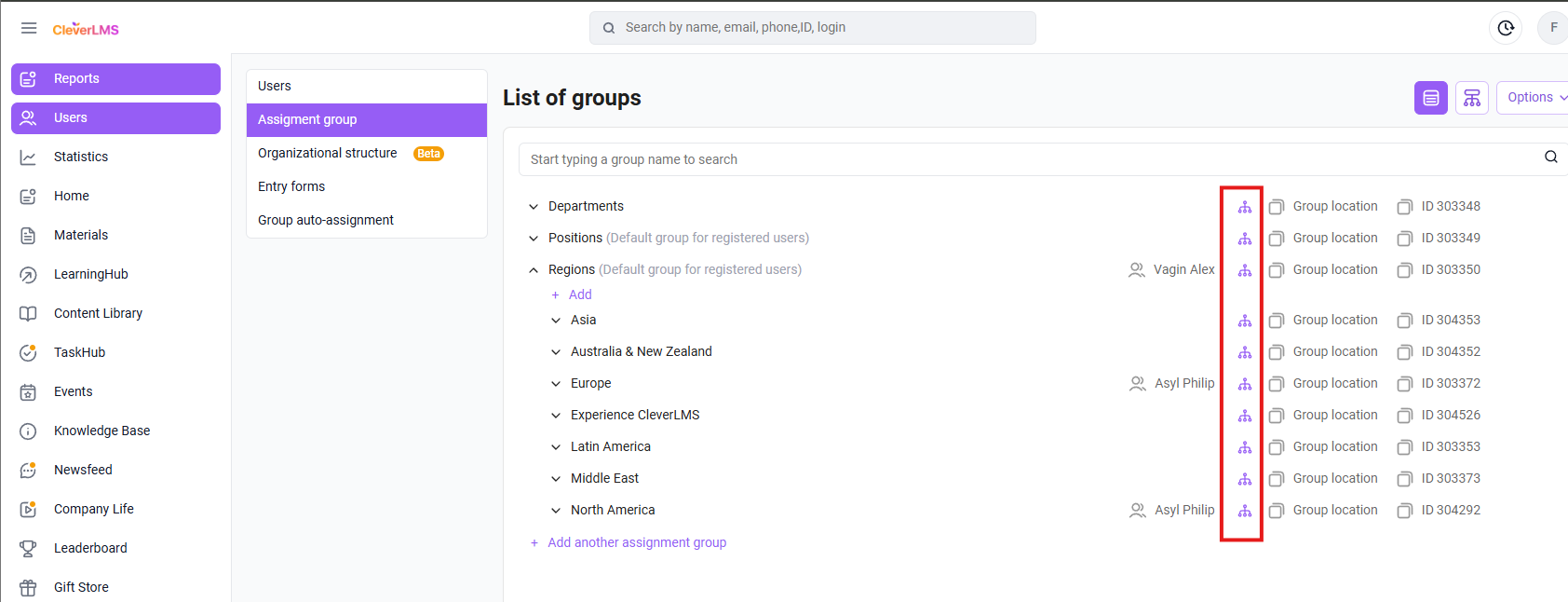
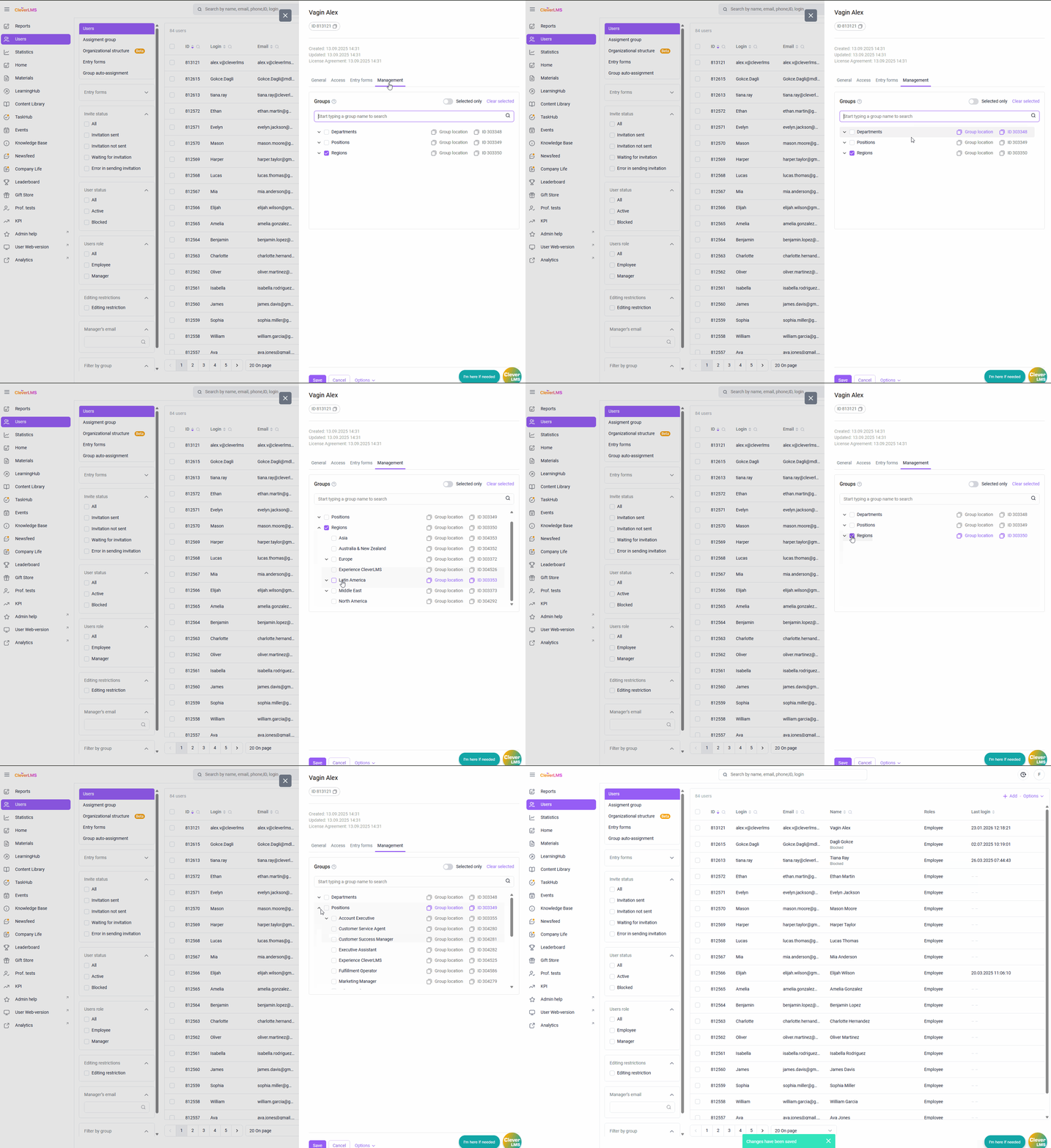
No. 2 From the manager's account
- Go to the Users tab of the Users section ;
- Enter the future manager’s details in the search;
- Open his account;
- Go to the Mangement tab ;
- Select subordinate groups using checkboxes (you can search for the group name in the search);
- Click the Save button .
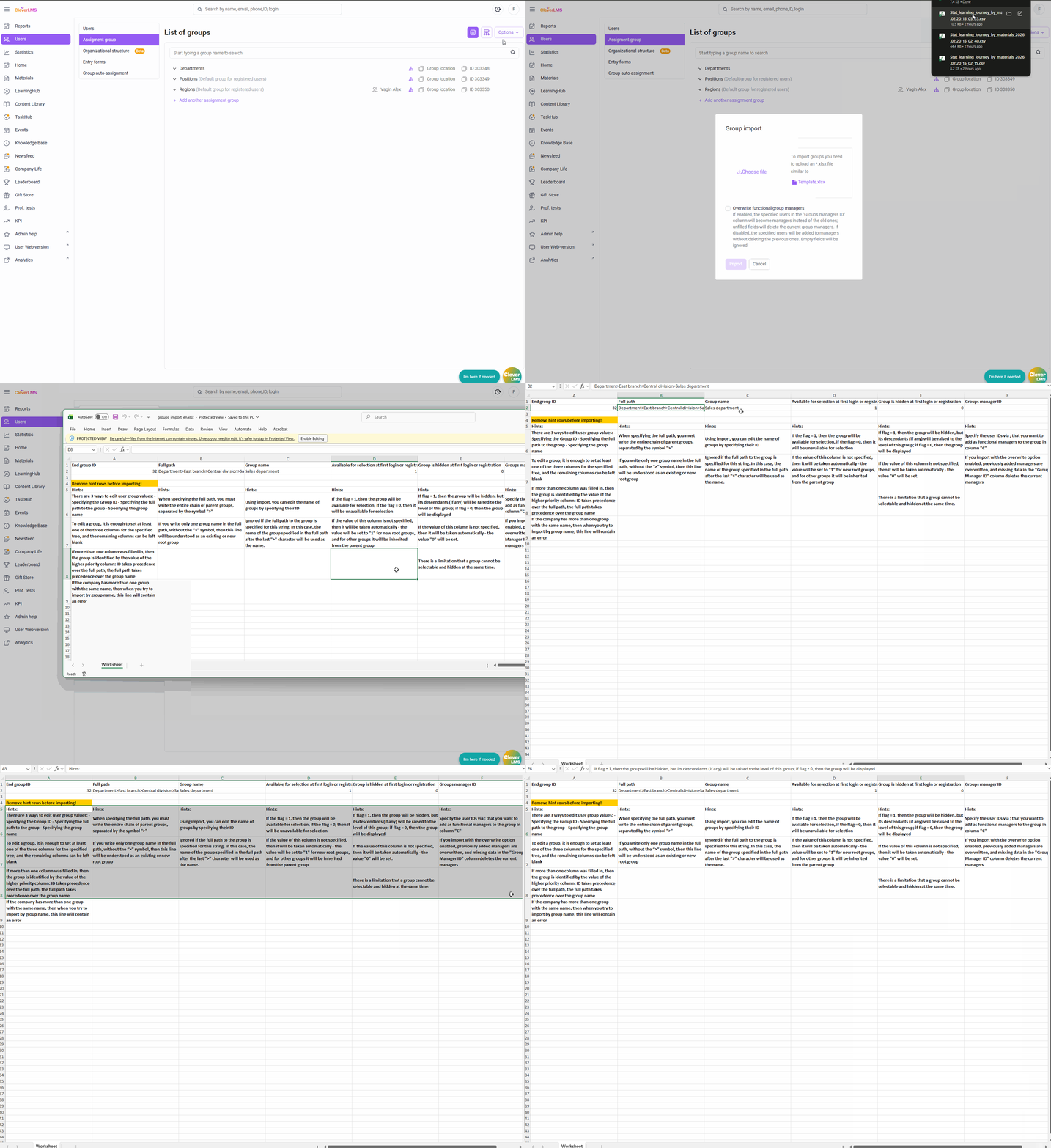
No. 3 Mass assignment of functional managers using the import file in the Assignment Groups section.
- Go to the Assignment Groups tab in the Users section ;
- Select Options and click Import ;
- Click Template.xlsx ;
- Download the template and fill it out;
In the template, specify the group name and either its ID or path. This will help avoid errors if there are any duplicate names in the system.
Separate multiple managers with a semicolon (;).
To download a prepared template:
- Select Options and click Import;
- click on the Select file field;
- Attach the import file ;
- If necessary, select Overwrite Functional Managers to replace the current group managers with those specified in the template;
- Click the Import button .
How the Overwrite Functional Group Managers option works :
- If the Overwrite option is disabled, new managers are added , and old values, if any, remain unchanged . Empty cells with manager IDs in the group are ignored.
- If the Overwrite option is enabled, new managers are written and old values, if any, are erased . If the column is empty, the manager data is cleared.
#3 Assigning a group of users as functional managers
Version 14.3.0 introduced the ability to automatically assign functional managers through user groups.
Automated assignment of functional managers allows them to be managed through a separate group, rather than by individual users.
Previously, each manager had to be added as a functional manager manually or via import, and changes to the group's composition required re-updating for each subordinate group. Now, you can first combine the desired managers into a separate group , and then assign that group as functional managers for another team . All group members automatically receive functional manager rights , and any additions or removals of users from the group are immediately reflected in all linked teams . This simplifies administration, saves time, and ensures that the list of managers is up-to-date.
Automatically assigned functional managers are not displayed in the directory in the user interface.
These managers can still track their subordinates' progress in the My Team section and review completed tasks, but they do not have the rights to assign training in the user interface.
How to assign a group of users as functional managers
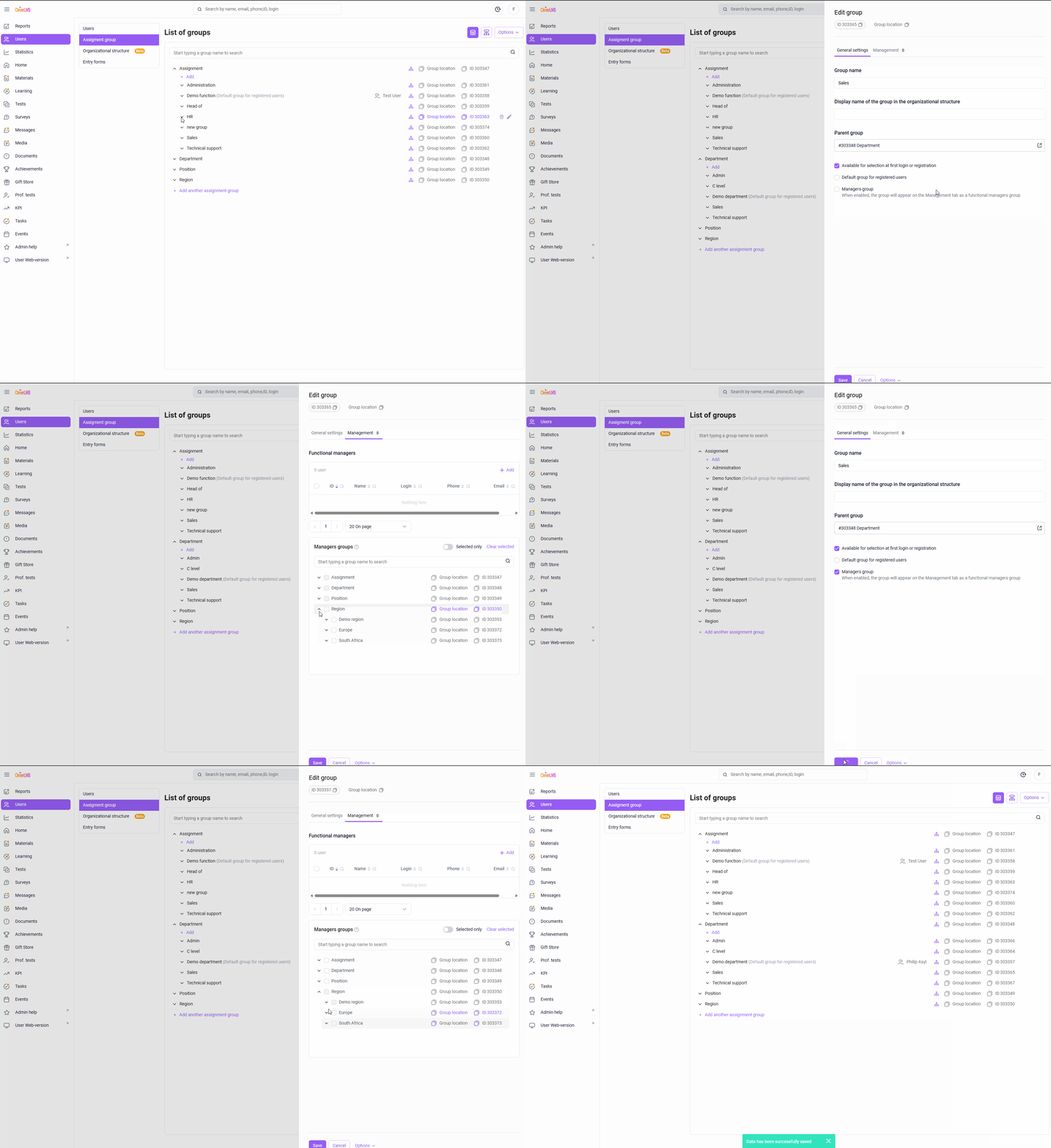
The assignment is performed in the section “Users → Assignment groups” .
Step 1: Mark the group as a functional management group
- In the Users section, go to the Assignment Groups tab ;
- Find the desired group and click on the pencil icon ;
- Go to the Basic Settings tab in the group settings ;
- Check the Manager Group checkbox ;
- Save the changes.
Step 2: Assign a group as functional managers of another group
- In the Users section, go to the Assignment Groups tab ;
- Click on the pencil icon next to the group for which you want to assign functional managers ;
- Go to the Management tab in the group settings;
-
In the Manager Groups block , select one or more groups that will act as functional managers.
You can only select groups that have the Manager Groups setting enabled ; - Save changes to settings.
After this, all users included in the selected groups automatically receive the rights of functional managers for this group.
- The employee received an award.
- The task requires verification.
Notifications will be sent only to those functional managers on whose team the employee is directly located.
How functional managers view the My Team section
When a functional manager first logs into the My Team section , they see a page to select a team, and the team data will not load until they select one of the teams.
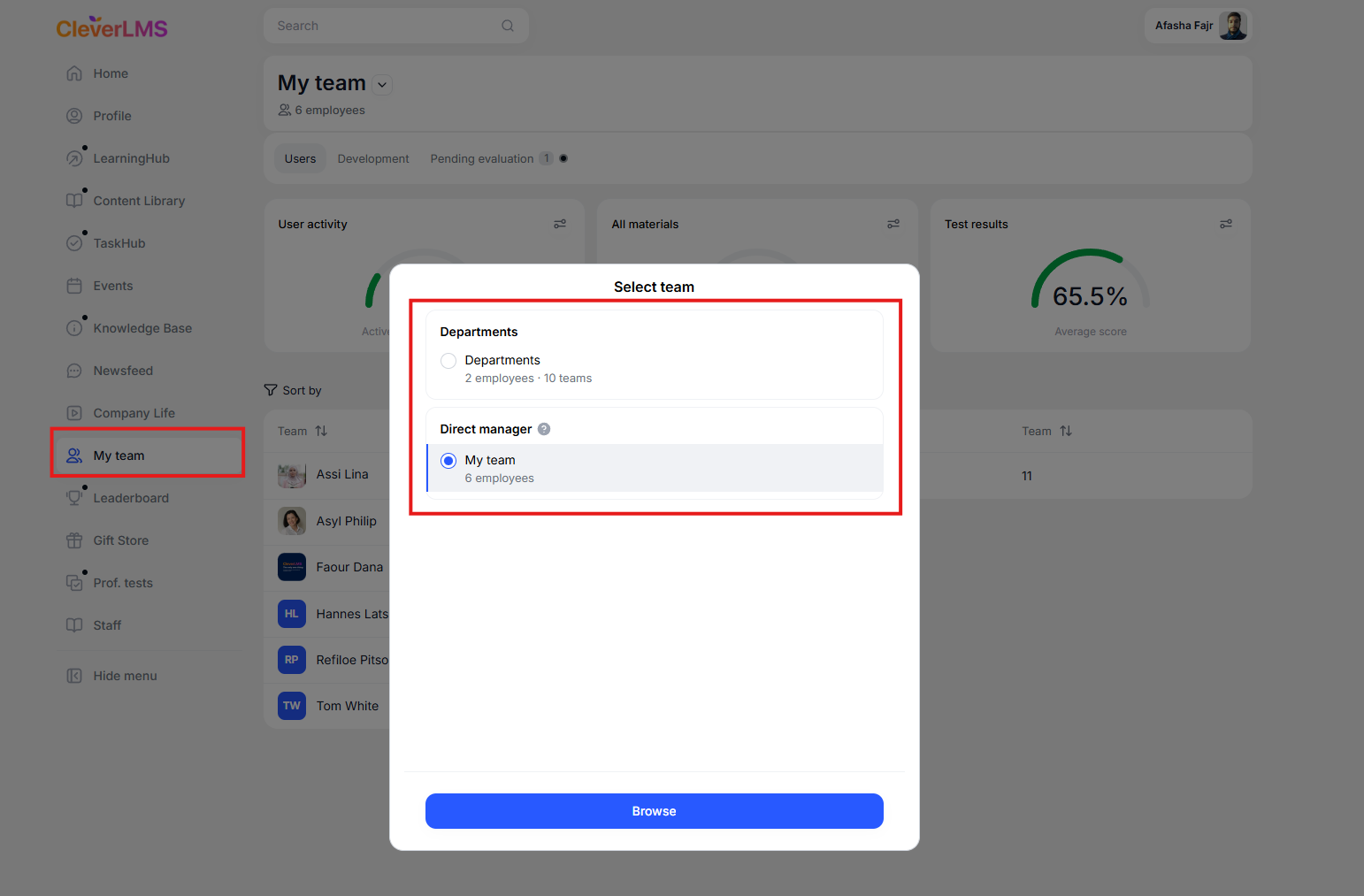
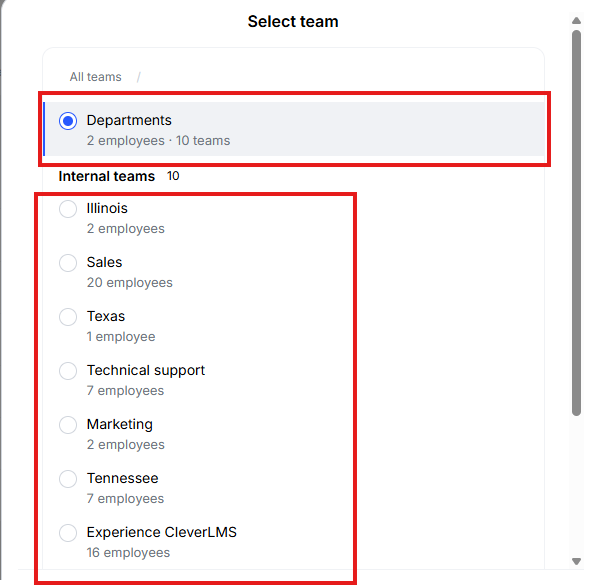
The manager selects a team and can view the users' results .
How can a manager change a team in filter settings?
- Click the Selected Team button .
- A window will open with group selection.
-
Please specify the required group:
- If the group is not nested , the data for this command will be displayed immediately;
- If a group has nested subgroups , you can go deeper and select the one you need.
-
After selecting a team:
- information will be displayed specifically for the selected group.
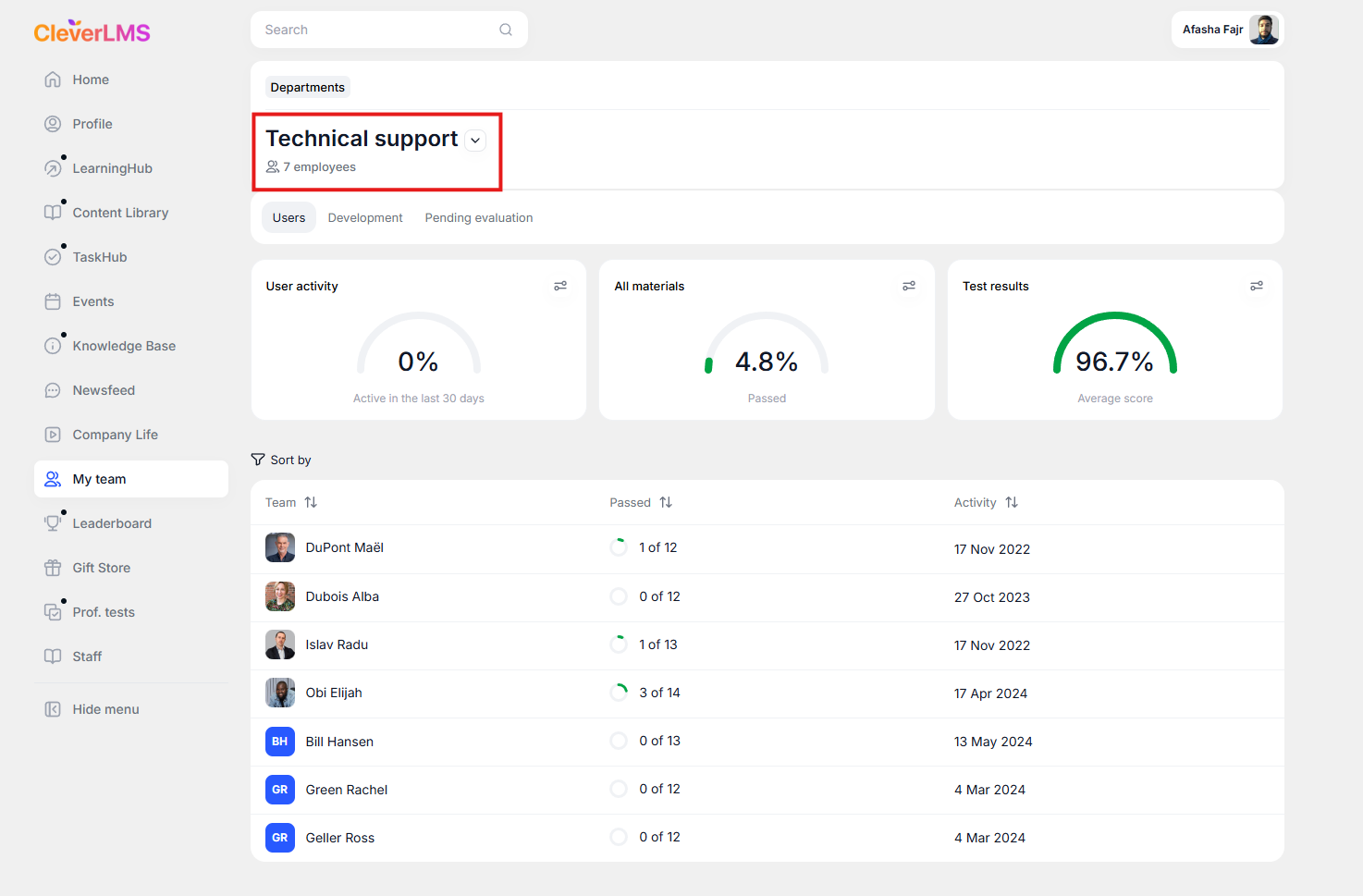
How does team selection work?
-
Saving your selection:
The last selected group is remembered and automatically loaded the next time you log in to the module.
After re-authorization, the selection is reset. -
If the user is both a functional and a direct manager
- its direct command is displayed at the end of the list;
- in the functional command the "Managers" block is not displayed;
- Manager users are displayed as regular employees.
Search on devices works within the selected team.
If a functional manager is assigned to a group that does not have any users directly, but does have users in subgroups lower in the hierarchy, then in the "My Team" section , when selecting this group, a message about the absence of users will be displayed, along with a button that allows you to view employees from subordinate groups.
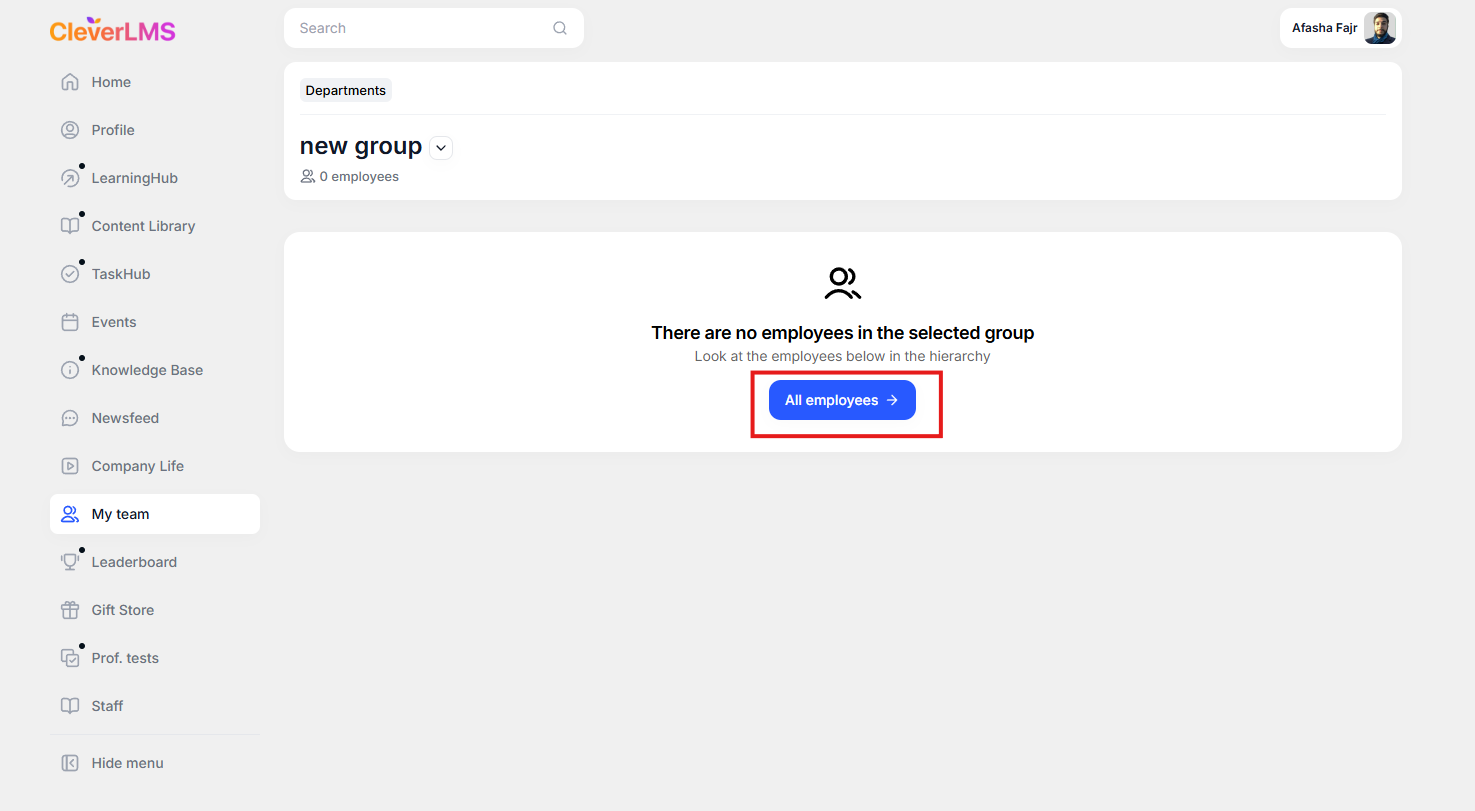
Features of displaying information on a functional command:
Rating (team):
Works as is. Displays data only for the immediate supervisor.
Employee profile:
Direct supervisor (by email) is displayed.
Training:
The ability to rewind videos is only available to direct supervisors.
Team Messages:
Available only to direct managers.
Home: My Team
widget : displays only direct reports (clicking on a module takes you to your direct team, regardless of previously saved filters). Favorites widget : only users from your direct team can be added.
Cases of appointment of functional managers
No. 1. A new employee has appeared in the company, who is supposed to be the manager of a certain group of users.
How this is implemented in standard reporting:
Find out who should be the manager's subordinates and add the manager's email address to the entire team in the Manager's Email field .
How this is implemented with functional managers: In the group settings for the desired department, the administrator sets the specified employee to be the manager of this group. Immediately after this, the manager sees the My Team
section, where all users of this group are located.
Example : X has joined the company. He needs to assign all employees in the Newbie group to his subordinates.
To do this, the administrator needs to:
- open the Users tab of the Users section;
- find the required user by his data and go into his personal card;
- Go to the Guide tab, find and check the desired group, and click Save.
2. X will now be able to see his subordinates in the My Team section in the user version .
Now, if the Newbie group is expanded with new employees, they will automatically appear in Y's team.
Important: Y may not have the " User is a manager" flag , but if he has been appointed as the functional manager of the group, the My Team section will appear and be functional.
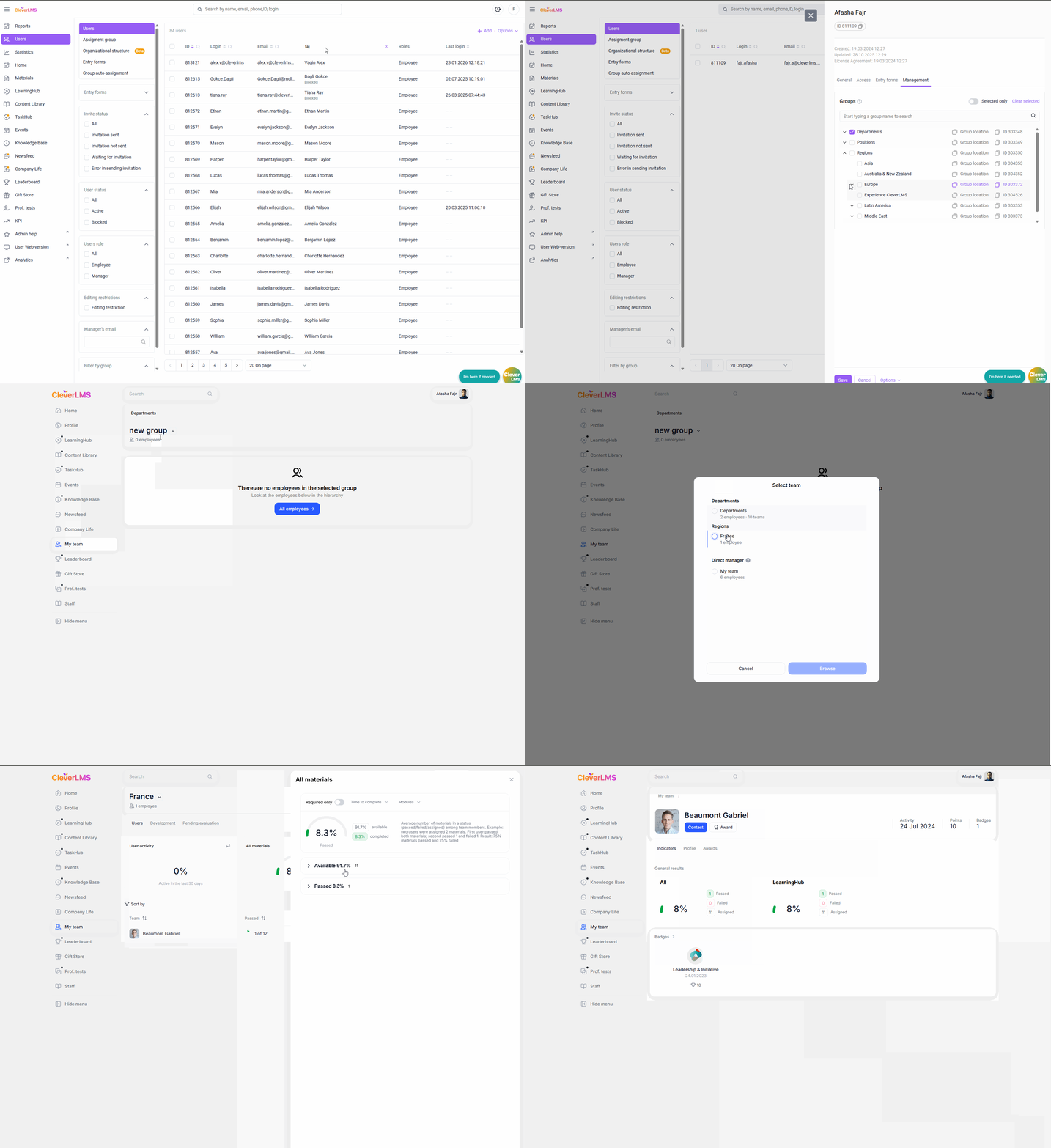
No. 2. A current employee has transferred to another department. The current manager must be indicated.
How this is implemented for direct reports:
Find out who the employee's manager should be, find the manager's email, and add them to the Manager Email field (forthe user).
How this is implemented with functional managers:
The administrator sets the department group's manager once in the group settings. As soon as an employee is added to this group for any reason, they automatically appear in this manager's team, without the need for additional actions.
Example : A User X moved from the Newbie group to the Current Employees group.
The Newbie group manager is another user Y.
The Current Employees group manager is yet another user Z.
When the group was changed, the user was automatically moved from RY's team to Z's team.
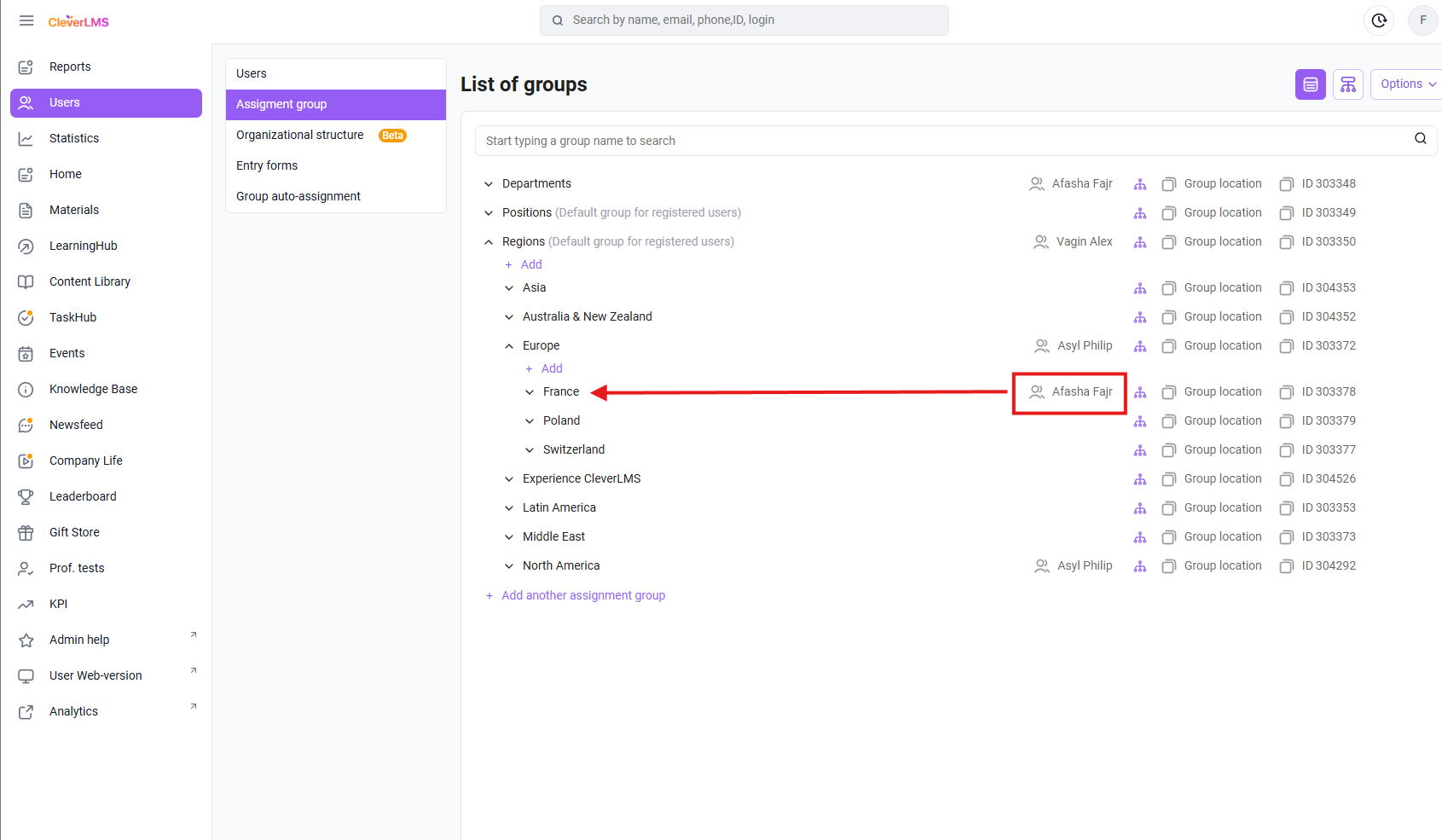
What it looks like in the admin panel:
The administrator once assigned functional managers, and now their teams are automatically replenished when users are added to their subordinate groups.
No. 3. There is a more senior manager in the company who needs to see the results of several teams subordinate to him.
How this works with direct reporting:
The specified employee is set as the manager of users, who in turn are also the managers of their teams. In My Team, such users are displayed in a separate "Managers" block, which can be clicked to access their team.
How this works with functional managers:
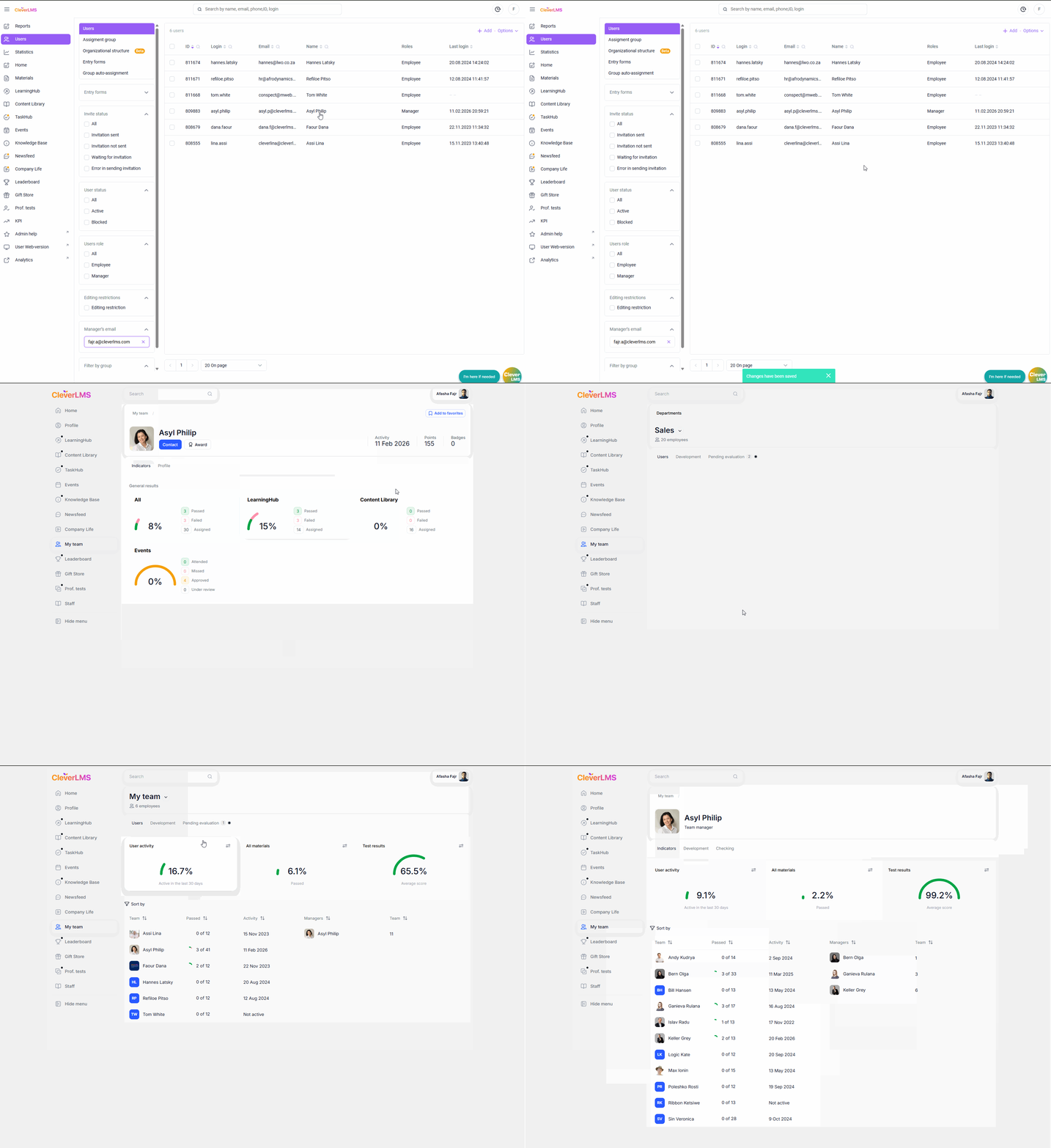
In the group settings for the desired hierarchy level, the administrator sets the specified employee to be the manager of this group. This manager sees the My Team section, where all users in this group are located, and can also view statistics for teams lower in the group hierarchy.
Example: X a senior manager. He needs to assign all employees in various departments to his subordinates.
To do this, the administrator needs to:
- open the Users tab of the Users section;
- find the required user by his data and go into his personal card;
- Go to the Guide tab, find and check the desired group, and click Save.
X will be able to see his subordinates in the My Team section of the user version.
X will be able to choose which department to view statistics for.
No. 4. A group of employees with several equal managers.
How this works with direct reporting:
The administrator assigns one of these managers to a group of employees as a manager, establishing a chain of command for the remaining managers. To view the team's results, managers will have to perform additional steps to navigate down the hierarchy (to the desired team).
How this works with functional managers:
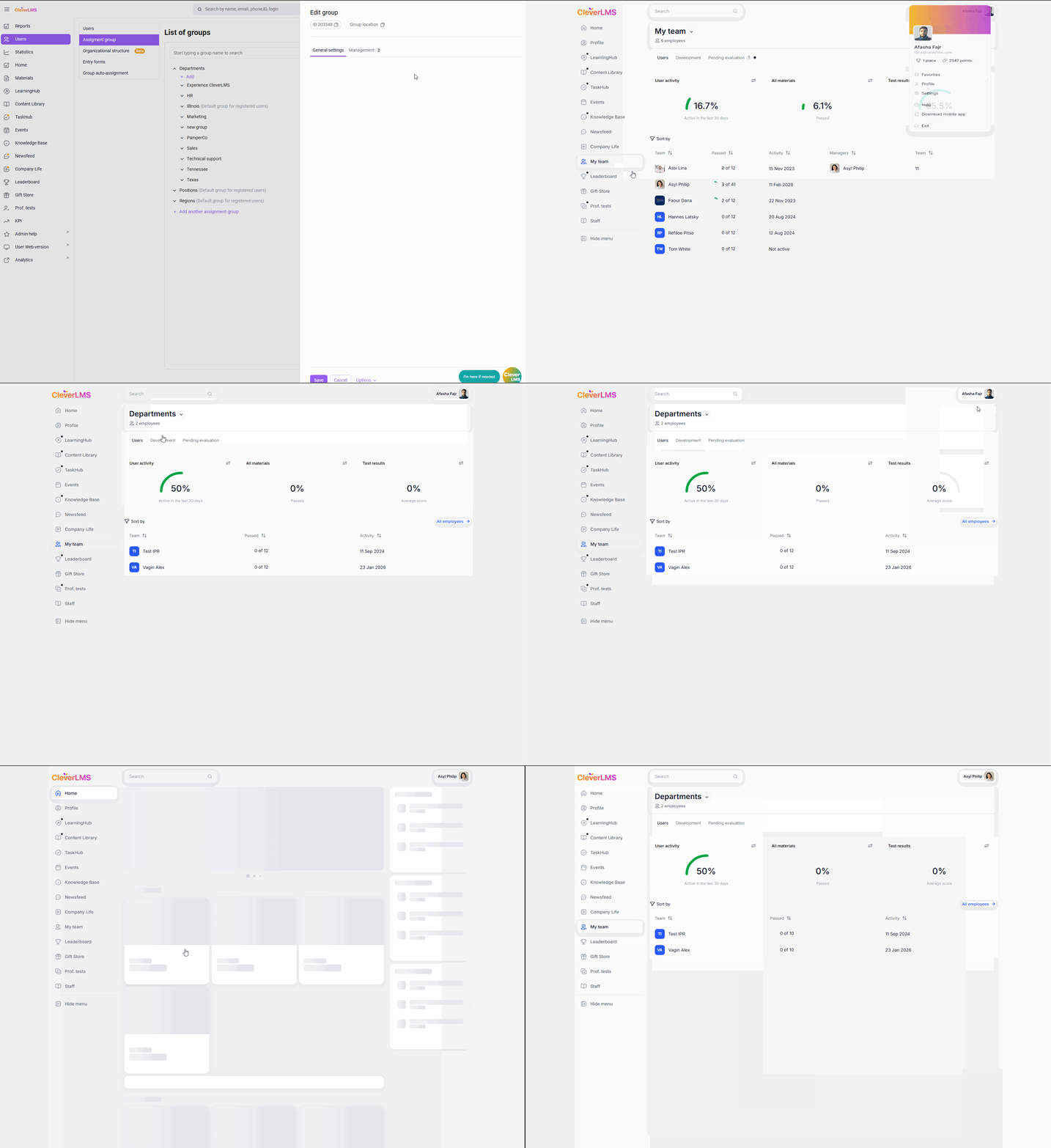
In the settings for the specified group, the administrator assigns all managers to that group, and all of them have the same permissions.
Example : X, Y, and Z are functional managers of a group. This is how it appears in the admin panel: The administrator once assigned functional managers, and now their teams are automatically updated when users are added to their subordinate groups. All three managers can see a list of the Branch employees in the My Team section.
#5. A group manager goes on vacation or sick leave, and another employee must cover for the duration of their absence.
How this is implemented in direct reporting relationships:
The administrator finds the substitute manager's email address and sets it to the absent manager's "Email" field. However, if the company has a long chain of command, a choice must be made: either accept that it will be inaccurate during the manager's absence, or spend time changing the chain of command.
After the primary manager returns, depending on the decision, either change the absent manager's "Email" field to the previous value, or change the chain of command back.
How this is implemented with functional managers:
The administrator sets up another manager in the group settings for the desired department. Now the substitute manager sees the My Team section.
After the primary manager returns, simply remove the substitute manager from the list of group managers. Example :Elizaveta Lobanova is the functional manager of the Candidate group. However, due to health reasons, she went on sick leave. She will be temporarily replaced by Alexey Laptev.
How to do this:
1. The administrator adds a replacement functional manager for Alexey Laptev's group, and Elizaveta is also possible. The administrator needs to:
- open the Users section and the Assignment Groups tab;
- hover the cursor over the desired group;
- click on the pencil icon;
- go to the Guide tab;
- click Add;
- find a manager by ID or last name or other data;
- select it with a checkbox;
- click Select
- then click Save.
Elizaveta Lobanova and Alexey Laptev see a list of employees of the Candidate group in the My Team section.
And upon Elizaveta's release from the hospital, the administrator will remove Alexey Laptev from the Candidate group. To do this, you need to:
- open the Users section and the Assignment Groups tab;
- hover the cursor over the desired group;
- click on the pencil icon;
- go to the Guide tab;
- select the manager with a checkbox ;
- click Actions;
- select Delete;
- then select Save.
#6. Each employee should have a personal mentor to oversee their training and onboarding.
How is this implemented with direct reports:
An employee can only have one manager, so if the company wants to use both departmental teams and mentors, they will have to choose.
If an employee has their mentor's email specified in the "Manager's Email" field, the department manager will not see them in their team.
How is this implemented with functional managers :
Shared teams can be implemented based on groups, thus freeing up the "Manager's Email" field to add the mentor's email. The department manager will see the employee's results because they belong to the appropriate group, and the mentor will see them because they are specified as a direct manager via the "Manager's Email" field.
However, only one email address can still be entered in the "Manager's Email" field, so an employee can only have one personal mentor.
#7. The company has trainers who train and onboard new employees. They should be able to see the results of such employees on my team, review their assignments, and issue rewards.
How this is implemented with direct reporting lines:
During onboarding and adaptation, employees specify the trainer's email in the Manager's Email field. However, an employee can only have one manager, so if the company wants to use departmental teams and trainers for new hires, they will have to choose. Accordingly, if the trainer's email is specified in the Manager's Email field, the department manager will not see this employee in their team.
How this is implemented with functional managers:
This can be solved in different ways:
- Create a root group called "Work Experience" and place all new hires in the "Up to 3 months" group. Assign a manager for this group, and this manager will be able to see the results of all new hires.
- If different managers are involved in training new hires for different positions, then subgroups of these positions can be created lower in the hierarchy for the "Up to 3 months" group and assigned managers for them.
- If the onboarding process is monitored more locally, then subgroups for new hires can be created within existing groups based on the required criteria (based on the organizational structure or region) and managers can be assigned to them.
Questions and Answers
How do I create an account for a manager if they aren't registered on the platform?
First, I need to choose a user registration method. This decision is made during the company's launch.
If a company uses manual registration, it is performed by platform administrators or Support (depending on the agreement).
________________________________________________________________________________________________________________________________
The company has configured the transfer of users and their groups from your system to Equio via integration.
What should you do if the groups from your system aren't suitable for assigning functional managers to them?
1. Change the structure of the groups transferred via integration.
In this case, you need to review the group structure and add the missing groups. You must coordinate these changes with the integration department so that users are automatically assigned to the new structure.
2. Add a new root group and subgroups within it. Give them appropriate names.
Now users will have this root group specified in their accounts. Next, you need to assign platform users to groups within it. A user can belong to either the root group or a subgroup.
This can be accomplished:
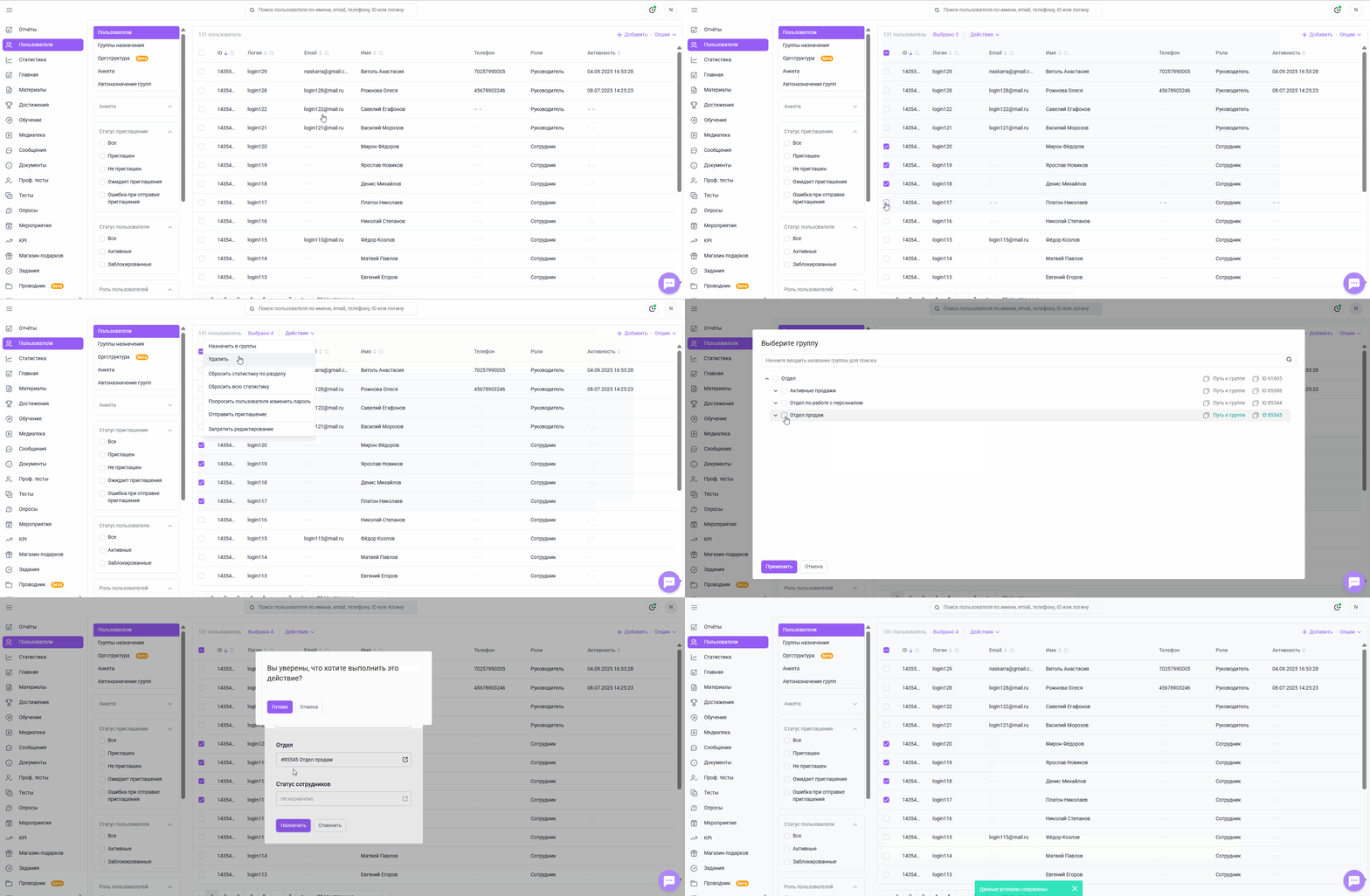
a) Using a bulk action :
- select a group of users or specific employees;
- Click Actions and select Assign to Groups ;
- Select a new root group and a subgroup within it.
b) Distribution of users into groups using the import file.
- download the import file;
- fill in the logins and the group you want to change;
- Upload the file.
In the future, the integration will assign all new users to the root group (or the default group if you've set this setting to one of its subgroups, not the root group). If you want users to be assigned to different subgroups within this root group, you'll need to assign them manually, as per the example above.
For existing users, the integration will not change this group.
________________________________________________________________________________________________________________________________
How will creating new groups affect access to content?
When you add new groups, they are automatically granted access to content available to all groups.
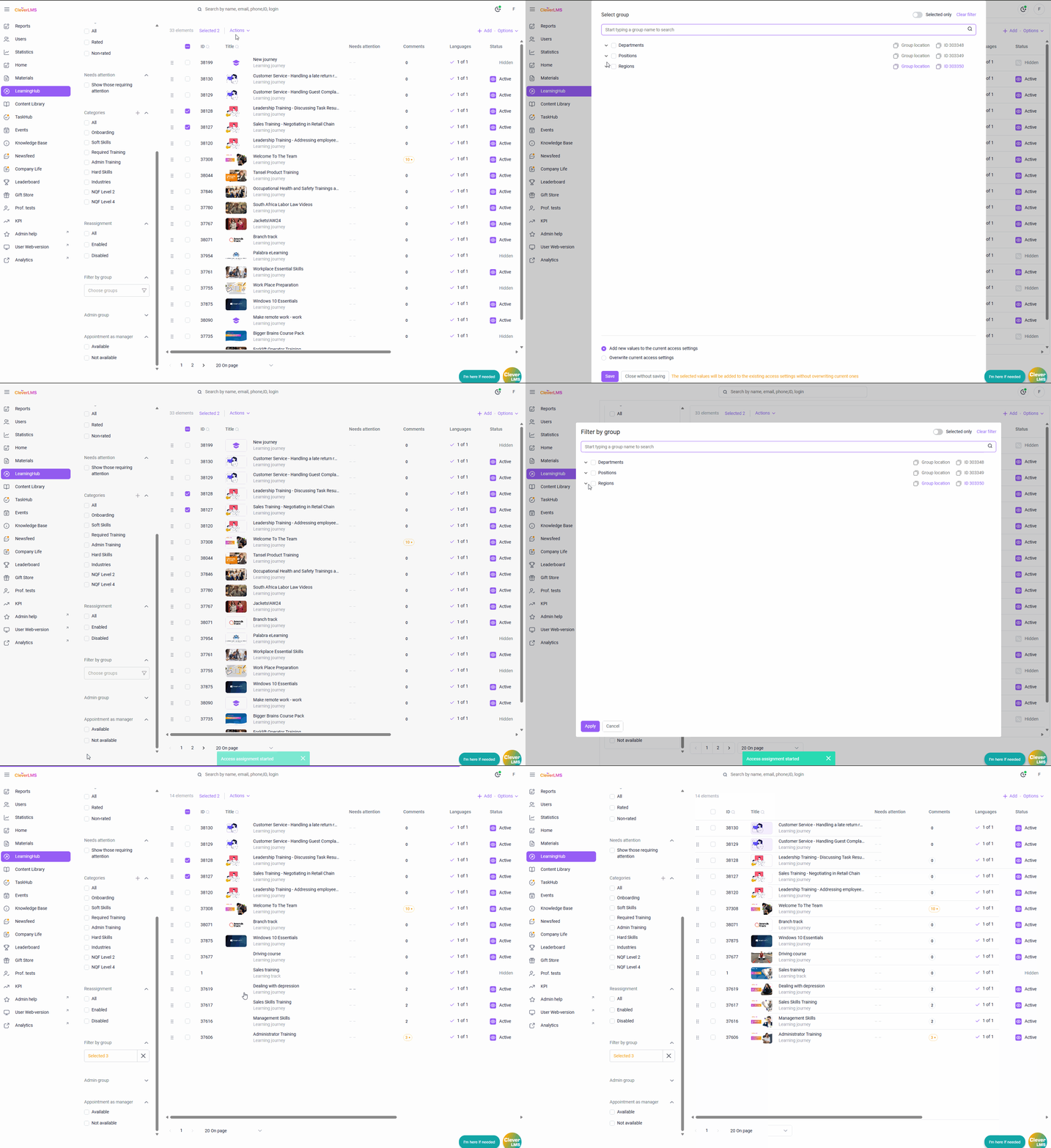
If access to content is granted to specific groups (not all), you can manually grant access to them by going into each course or in bulk.
Bulk access:
For convenience, you can filter materials by existing access, title, or category.
- Open the content section;
- filter materials (by existing access, by title, by category);
- highlight them with check boxes;
- click actions;
- change group access;
- add to current accesses.
If a user gains access to content that was previously unavailable to them and notifications are enabled for that content, the user will be notified.