
Smart Search allows you to find results more accurately by searching within content, searching by incomplete word matches, and saving your search history.
When is smart search useful:
- When you need to search within PDF documents or longreads.
- When you need results based on an incomplete word match.
How Smart Search Works
Case: An employee needs to find the material "Conflict Management," but doesn't know which section it's in.
Enter the word "management" or the full phrase "conflict management" in the search box.
The search finds the material, including suggestions that include materials with a conjugated form of the word "management.
" In this situation, a standard search wouldn't be able to find materials with a different ending, as it works on an exact match.
Smart search also allows you to search for matches in "Training," "Events," "Knowledge Base," "Messages," and "Media Library" from any section.

Comparison of smart search and "standard"
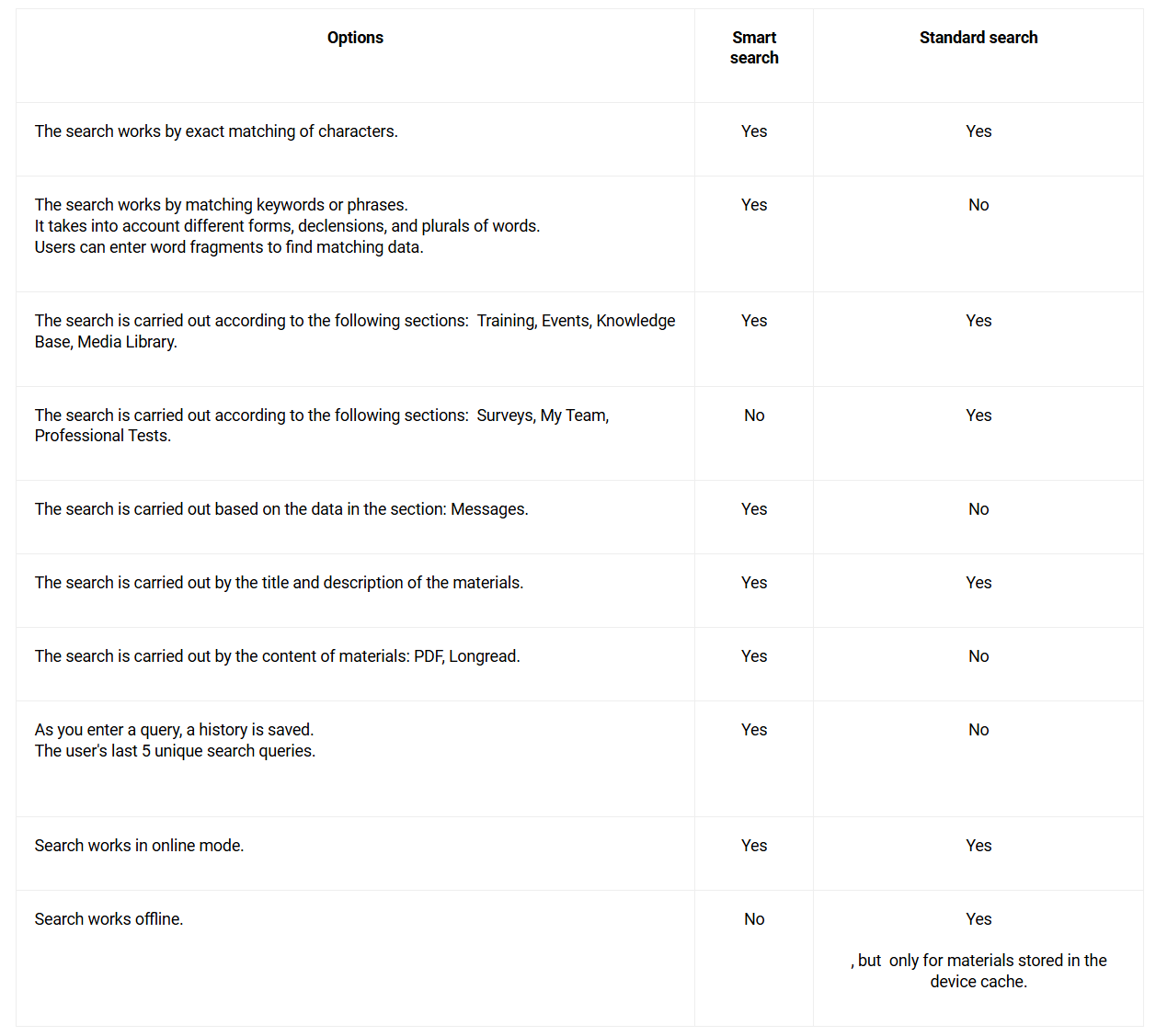
Important : Smart search is fully implementedin the web version .
In mobile versions, smartsearch is only available on the home page.
How does saving search history work?
- Tapping a query from history automatically performs a search.
- Queries are added in chronological order as new queries are executed.
- Duplicates are not added to history; instead, the duplicate query changes its position in history (moves to the first line).
- When adding more queries than the limit (5), the last query in the list is deleted.
System Limitations
Language Restrictions
- Not all languages are supported (list) .
- Mixing languages in one document may not work correctly.
- Morphology only works for supported languages and according to the rules of the material language.
File Type Restrictions
- Text extraction quality depends on the document format and quality.
- PDF files with text images (skans) are not included in the search.
- PDF files that are not images, but the system cannot recognize them - depends on the library.- Damaged or protected PDF files may not be processed correctly.- PDF size limit: maximum 1 million lines (documents larger than this size are not processed).
The search is performed on materials available to the user. Also, after access is granted, it takes time for the cached data to update. If an employee has just been granted access to a material, it may take up to 5 minutes for the material to appear in their search results.
Diagnosing PDF problems
When a user reports that a PDF text is not found by search, you need to check:
1. Document size:
If the PDF contains more than 1 million lines, this is a technical limitation.
Solution: Split the document into several parts or use alternative formats (DOCX, TXT).
2. Open the PDF in different viewers:
- Adobe Acrobat Reader.
- Browser (Chrome/Firefox).
- Any other PDF editor.
3. Check the text selection option:
- Can you select text in a PDF with a mouse?
If not, it's a file/image, and image search doesn't work. Our system can only process text-only PDFs.
Solution: Please recreate the document as a text-only PDF.
4. Copy the text and check:
- Select the problematic fragment and copy it into notepad.
- Are there any hidden/non-printable characters?
- Are the letters displayed correctly?
Formatting issues were detected in your PDF file.
Solution: Resave the document in a different format or correct the formatting.
If the file is protected: Our system cannot extract text from it. Please remove the protection from the document or recreate it without restrictions.
Search errors
Our search system is built on OpenSearch . This is a ready-made tool that has its limitations.
OpenSearch is an external product, and we have no control over changes to it.
We can resolve:
- Issues with user accessibility.
- Incorrect filtering by material status.
- Errors in user language settings.
- If the user has difficulty finding materials that should be displayed according to all the rules. These are issues with content indexing. Indexing materials is the process of adding information about materials to a search engine's database. Indexing is necessary so that search engines can see and display these materials in search results.
- Errors in the search interface.
- Extracting text from PDF (after diagnostics and approval—see below)
OpenSearch's area of responsibility (not addressed by Equio and not a bug):
- Morphological errors (incorrect word conjugation).
- Problems with ranking (building the order) of results.
- Language restrictions.
- PDFs and images (their text is technically impossible to read).
- Search performance on large data sets.
Error detection algorithm
Step 1: Identifying the type of problem
Questions to answer when difficulties arise:
- Is the material not found at all or is it in the wrong place in the search results?
- Does the user have access to this material?
- What language is selected in the user's settings?
- Is the material in the "Active" status (not in the "Hidden" status)? Step 2: Checking basic conditions
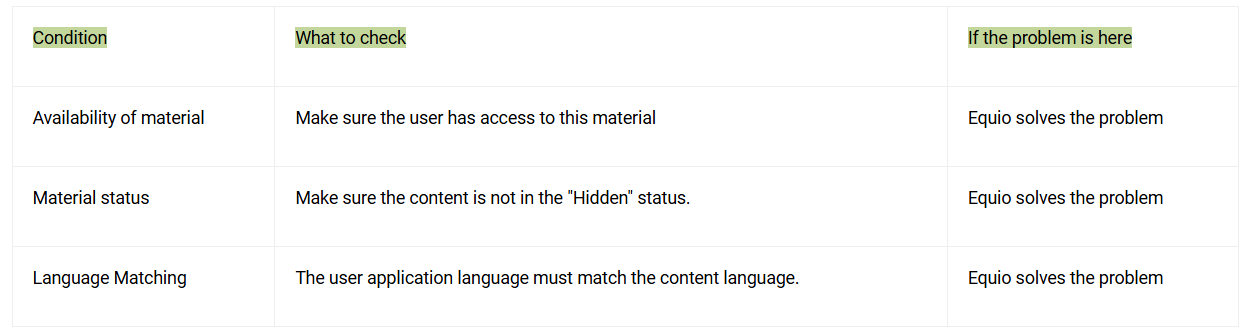
Step 2: Classify problems
Typical situations and their classification:
🟢 We're fixing it
Example 1: "The user cannot see the document, although they have access to it."
Possible cause: Error in access rights filtering.
Action: Report to Support.
Example 2: "Search finds hidden content."
Possible cause: Incorrect status filter.
Action: Notify Support.
Example 3: "The user is in Russian, but they see results in English."
Possible cause: Incorrect language filtering settings.
Action: Report to Support.
🔴 NOT fixable (OpenSearch feature)
Example 1: "Searching for 'car' does not find a document with the word 'cars'."
Reason: Limitations of OpenSearch morphological analysis.
Action: No solution, as this is a system feature.
Example 2: "The PDF document contains text, but search can't find it."
Action: PDF diagnostics are required (see the section "Diagnosing PDF problems").
Example 3: "Irrelevant results at the top of search results."
Reason: Features of the OpenSearch ranking algorithm.
Action: Familiarize yourself with the general principles of the search algorithm.
Important: User request history is recorded in the developer's database. If necessary, you can request it from Support. This feature is paid, and preliminary testing is available. Contact your manager to find out the cost and timeframe for activation.