- How to view Audit statistics
- Filters and sorting
- Bulk actions with audits in statistics
- Export audit statistics
How to view Audit statistics
In the Statistics section, you can view information about the completion of Audits.
To see statistics on Audit you need to:
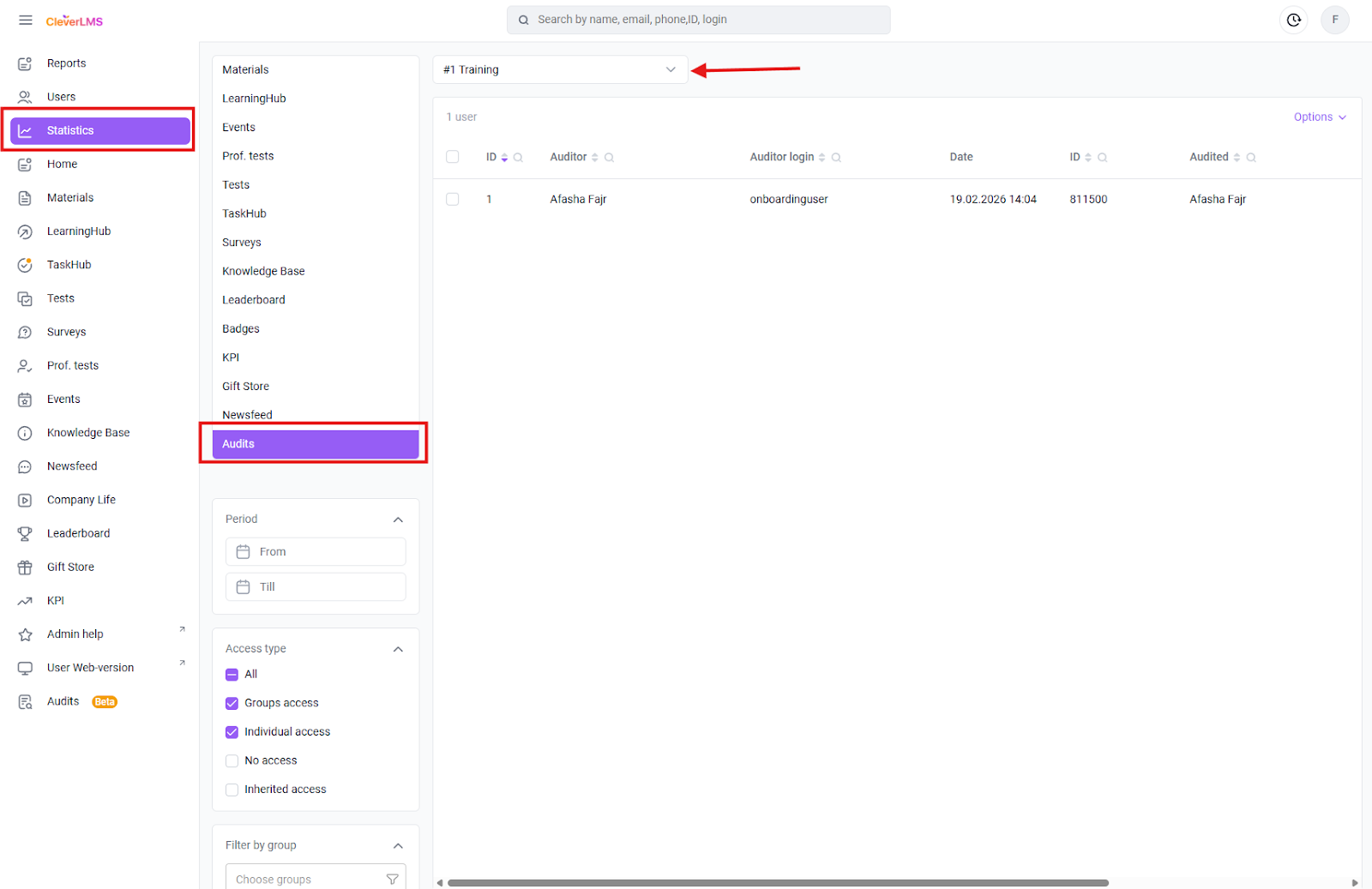
- Go to the Statistics section ;
- Select the Audits section in the additional menu ;
- Select the Audit for which you want to see statistics by entering its ID or name in the selection field .
Filters and sorting
If necessary, you can further customize the display of audit statistics using the following filters:
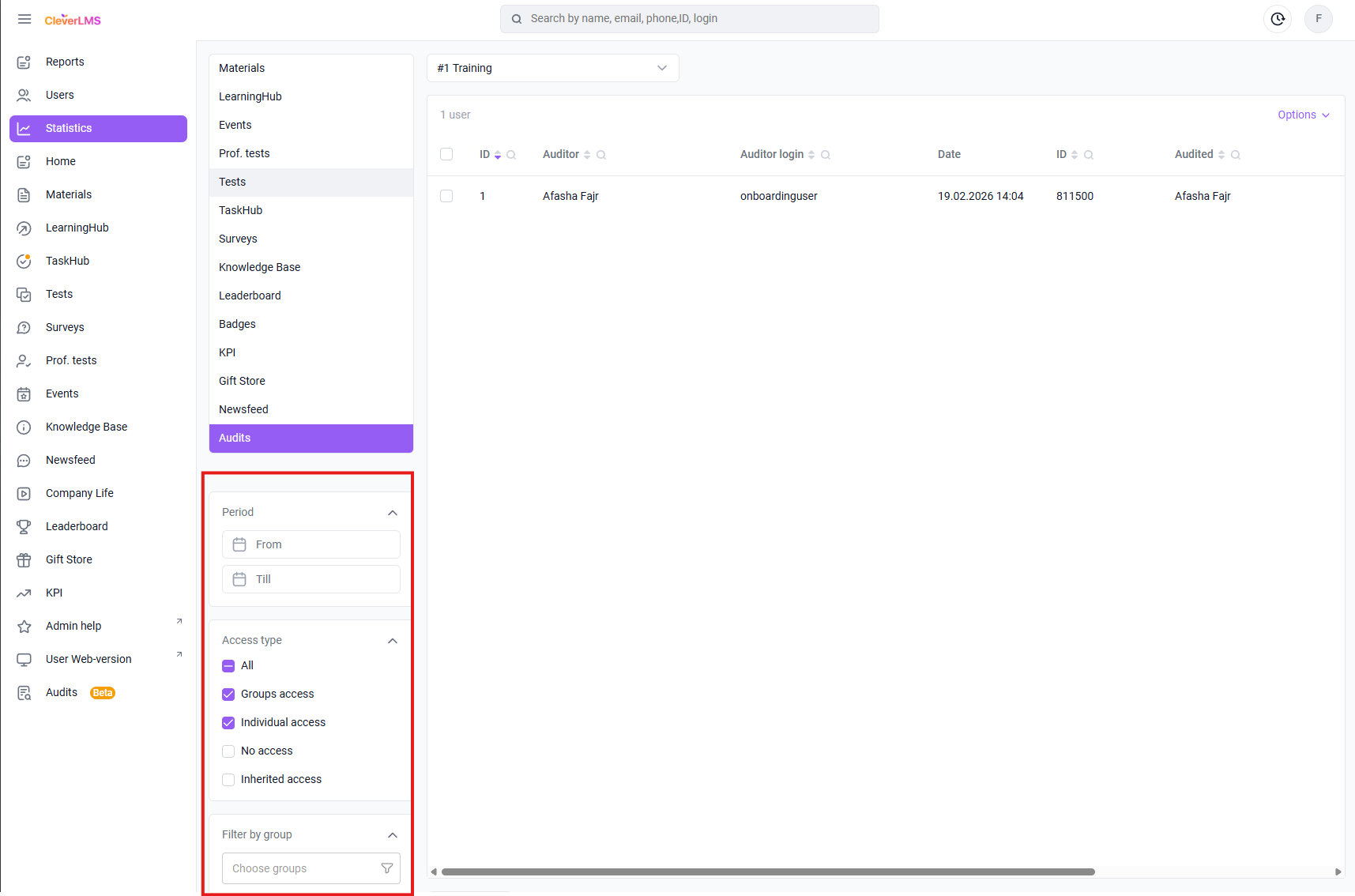
Period - allows you to filter audit completions (attempts) for the selected period, by the date of completion by the auditor.
Access type:
- All - applies the selection of all items in this filter;
- Group Access - audit available for group access;
- Individual access - the audit is available for individual access;
- No access - shows audits for which access was revoked, but the user's responses were saved in the statistics;
- Inherited access - filtering for this item is not implemented in update 14.3.0; it will become available in future platform updates.
Filter by groups - filters the displayed list by auditor groups.
Bulk actions with audits in statistics
You can delete statistics for a response to a request using bulk actions in the Audits section's statistics . To do this:
- Go to the Statistics section ;
- Select the Audits section in the additional menu ;
- Select the Audit for which you want to see statistics by entering its ID or name in the selection field;
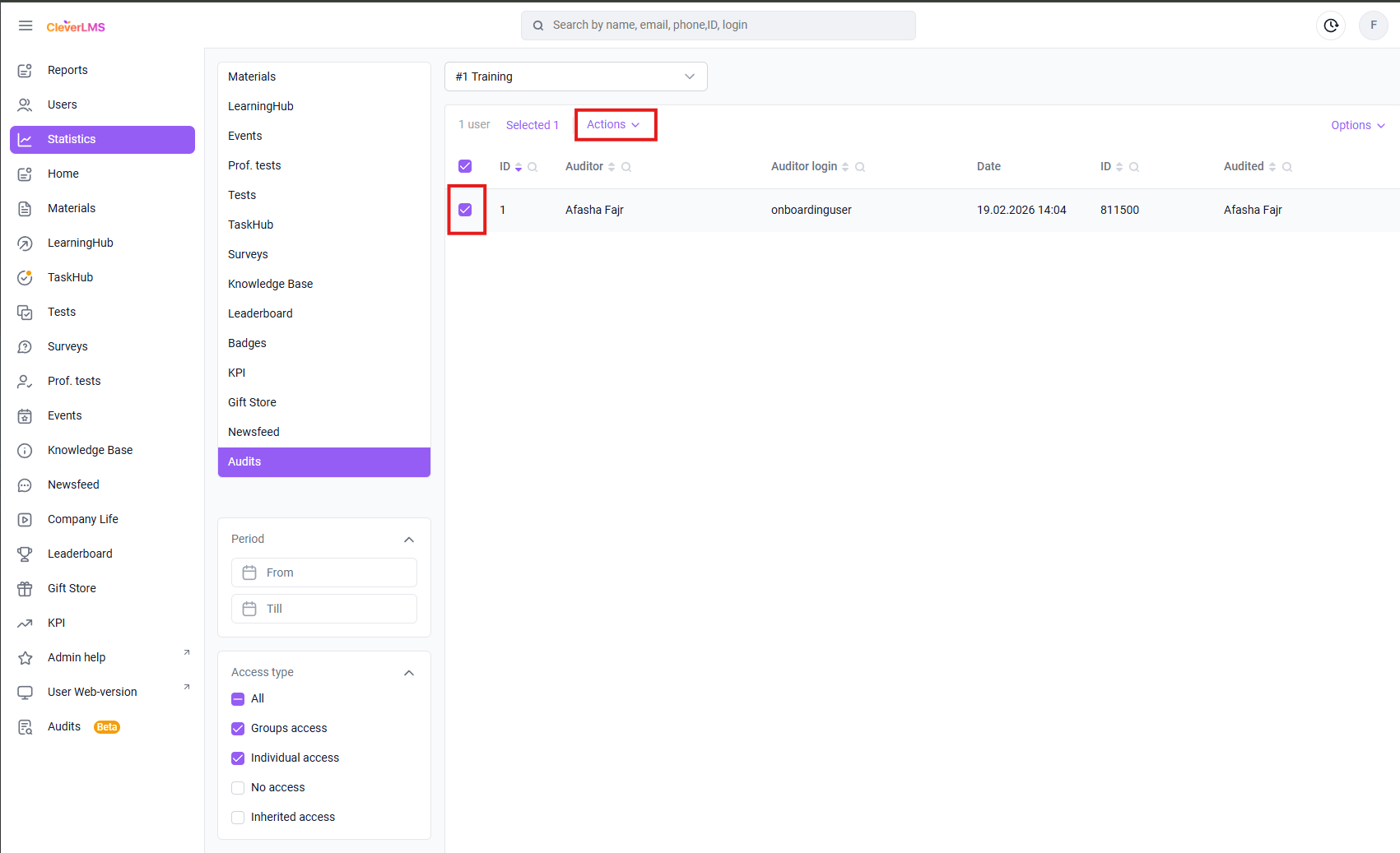
- Select the desired answer using the checkbox;
- Click Actions;
- Select Delete response statistics .
Export audit statistics
Export of audit statistics provides the ability to obtain an export of audit responses and the status of familiarization of the audited item .
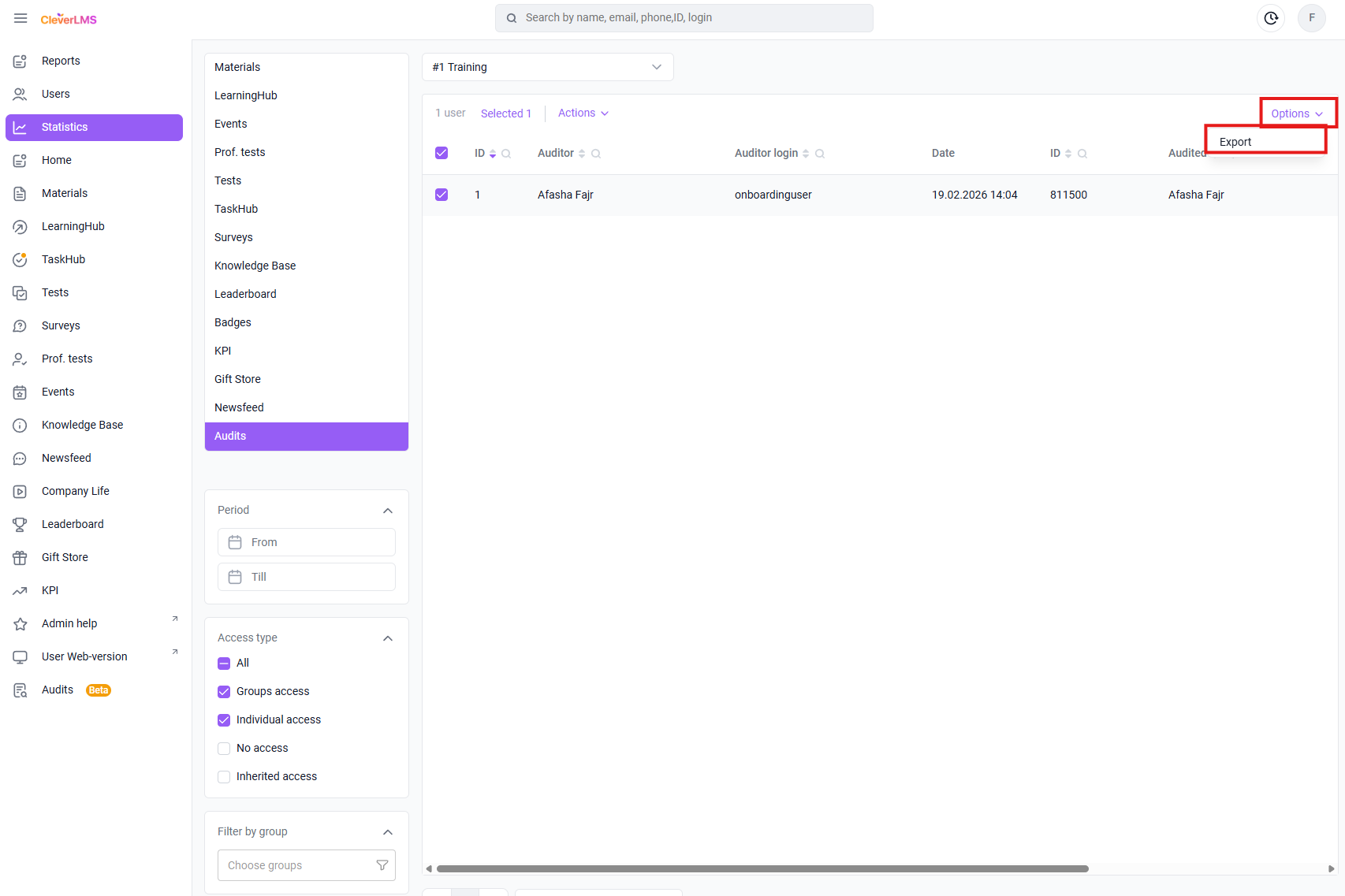
To export audit statistics you need to:
- Go to the Statistics section ;
- Select the Audits section in the additional menu ;
- Select the Audit for which you want to see statistics by entering its ID or name in the selection field;
- If necessary, select the answers you want to see in the download using checkboxes;
- Click Options ;
- Select Export;
- Select the fields you want to see in the export;
- Click Export ;
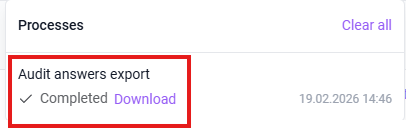
- Download the file from the tab in the processes window.
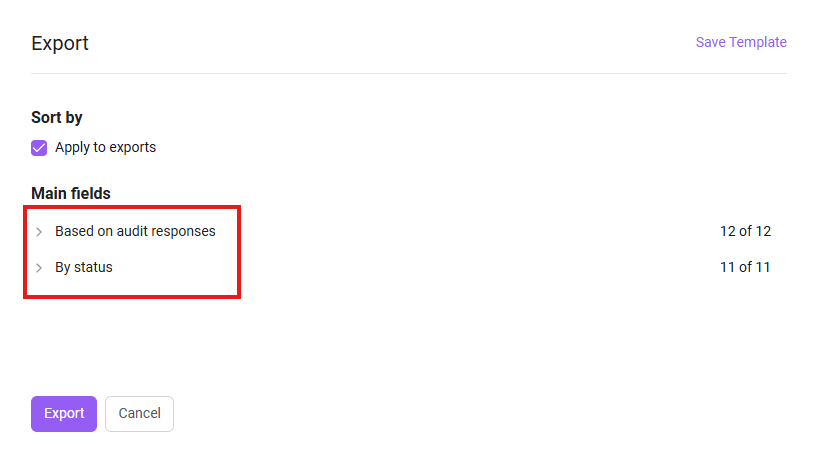
Fields that can be selected to generate a download with information on the downloaded data:
According to the audit responses:
- Audit ID;
- Audit title;
- Auditor ID;
- Auditor login;
- Auditor's full name;
- Auditor's email;
- ID of the audited;
- Audited person's login;
- FI of the audited entity;
- Email of the person being audited;
- Audit date/time;
- Question
- Names of form fields specified in the audit. 1 row = 1 field;
- Answer
- Completed data in the form fields.
In the generated export, the Section Name column is always automatically added between the Audit Date/Time and Question columns .
Please take this into account when generating your reports .
By status:
- Audit ID;
- Audit title;
- Auditor ID;
- Auditor login;
- Auditor's email;
- ID of the audited;
- Audited person's login;
- FI of the audited entity;
- Email of the person being audited;
- Status (types of statuses)
- "-" if the user did not log in to the audit that was sent to him;
- "Viewed" if the user entered the audit but did not click "Confirm";
- "Confirmed" if the user entered the audit and clicked "Confirm";
- Status date/time - the date when one of the statuses was set.
Once the dump has been generated, it can be downloaded from the processes window and used for further analysis.